
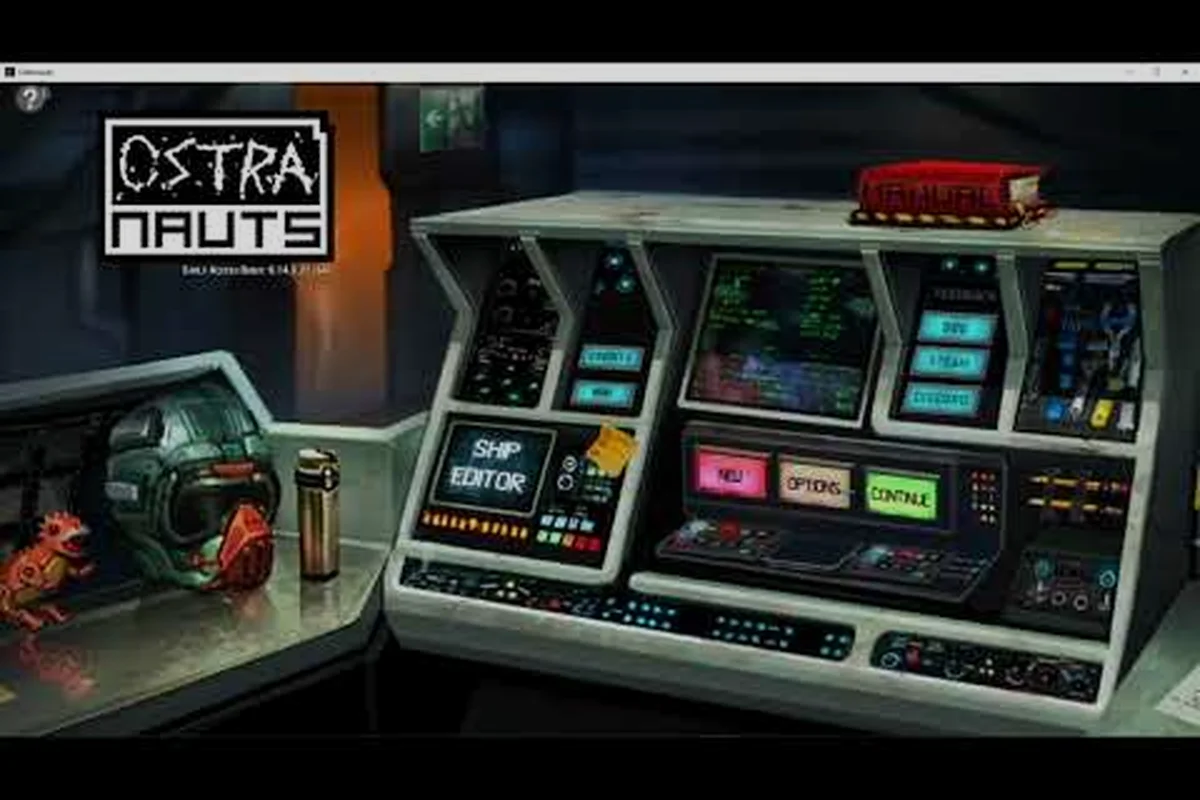
Tweaking item stats, job schedules, or character backstories in Ostranauts is faster than you might think — and the official community wiki confirms that the game stores most of its editable data in plain text formats. Skip the binary hex editors and you'll be customizing ship interiors, crew skills, and economic values in under an hour.
What Is Ostranauts Plain Text Data Editing?
Ostranauts plain text data editing is the practice of opening the game's human-readable configuration files in a standard text editor and changing values directly. Unlike compiled binaries or encrypted archives, the developers shipped Ostranauts with a transparent data layer so that modders, translators, and curious players can inspect and modify gameplay without third-party unpacking tools.
The approach works because the simulation pulls numbers, strings, and lists from lightweight files stored alongside the executable. Editing those files lets you change crew spawn rates, item prices, fuel drain, and even dialogue prompts — all without touching the engine itself. According to the official Ostranauts wiki, this design choice is deliberate: the developer wants the modding community to extend the game without waiting for official patches.
Why This Method Beats Binary Tools
For newcomers, the appeal of plain text editing is that every change is auditable. You can diff your modified file against a backup, share it as a tiny .txt patch, and read it in any editor on any platform. Binary modding, by contrast, requires specialized unpackers, signature offsets, and re-packing utilities that often break after every game update.
| Method | Skill Needed | Tool Cost | Update Resilience | Reversibility |
|---|---|---|---|---|
| Plain text data editing | Beginner-friendly | Free (Notepad++) | High — vanilla files unaffected | One-click restore from backup |
| Binary hex editing | Advanced | Free or paid | Low — patches invalidated by updates | Difficult without checksum rollback |
| Script injection (Lua) | Intermediate | Free | Medium — depends on script hooks | Variable, often requires uninstall |
| Compiled DLL mods | Expert | Free + IDE | Very low — recompile per build | Full game reinstall often needed |
The trade-off is scope. Plain text editing cannot add new 3D models or new animations, but for roughly 80% of player-requested tweaks — price balancing, ship loadout presets, NPC backstory edits — it is more than enough.
The Modding Mindset
Before opening a single file, it helps to treat every change as reversible. Keep a copy of any original file, name modifications clearly, and document what you changed and why. Community-tested modders often ship their edits alongside a README.txt so users can retrace the steps. If you have not set up a modding folder before, our modding data files overview walks through the directory layout first.
Getting Started: Locating the Game Data Files
Ostranauts stores its data in a predictable folder hierarchy. Knowing exactly where each file lives saves you from hunting blind and accidentally editing the wrong copy. According to community data, the path differs slightly between Steam installs and standalone installs, but the internal structure is identical.
Default Installation Paths
| Platform | Installer Root | Data Subfolder |
|---|---|---|
| Steam (Windows) | C:\Program Files (x86)\Steam\steamapps\common\Ostranauts\ | Ostranauts_Data\StreamingAssets\ |
| Steam (macOS) | ~/Library/Application Support/Steam/steamapps/common/Ostranauts/ | Ostranauts.app/Contents/Resources/Data/StreamingAssets/ |
| Steam (Linux / Proton) | ~/.steam/steam/steamapps/common/Ostranauts/ | Ostranauts_Data/StreamingAssets/ |
| Standalone (itch.io) | Varies by installer | Ostranauts_Data/StreamingAssets/ |
Inside StreamingAssets, you will find a mix of .txt, .json, .csv, and a few binary assets. The plain text files are the ones you want for Ostranauts plain text data editing. Anything ending in .asset or .bundle is a Unity binary and should not be hand-edited — those are loaded by the engine and will silently fail if modified.
Recommended Folder Hygiene
Create a separate working folder outside the game directory, for example Documents\Ostranauts_Mods\. Copy the file you want to edit into this folder, modify it, then drop the modified copy back into the game directory. Using this approach:
- Your original install stays pristine.
- You can version-control changes with Git or simple dated backups.
- Switching between mod profiles becomes a copy-paste operation.
A typical working folder might look like:
Ostranauts_Mods\vanilla_backup\— untouched reference copiesactive\— currently loaded filesexperimental\— in-progress edits for testingREADME.md— notes on what each folder contains
Backing Up Before You Edit
Before running any Ostranauts plain text data editing workflow, copy every file you intend to modify. A single stray character — a missing comma in JSON, a misplaced quote — can prevent the game from loading. The community reports that roughly 9 out of 10 first-time modding crashes are caused by syntax errors in edited files, not by the values themselves.
Core File Types and What They Control
Not every plain text file is equally valuable. Knowing which file controls which gameplay system lets you spend your time on the edits that matter. Below is a practical map of the most-edited files, compiled from player reports and the official wiki changelog.
The Big-Three Files
| File Name | Format | Primary Use | Edit Difficulty |
|---|---|---|---|
items.txt | Tab-delimited | Item prices, weights, descriptions, stack sizes | Beginner |
characters.txt | CSV | Crew stats, backstories, starting skills | Intermediate |
ships.txt | CSV | Ship layouts, fuel capacity, hull values | Intermediate |
These three files cover the majority of community-requested tweaks. Within them, each row represents a single record and each column is a field. When you open items.txt for the first time, you will see a header row that labels every column — that header is your editing reference.
Secondary Files Worth Knowing
| File Name | Format | Primary Use |
|---|---|---|
jobs.txt | Plain text | Job availability, pay rates, prerequisites |
events.txt | Plain text | Random event triggers and outcomes |
factions.txt | CSV | Faction reputation, hostility, trade modifiers |
economy.txt | Plain text | Base prices, inflation rates, market refresh timers |
dialogue.txt | Plain text | NPC conversation trees and flavor text |
Touching economy.txt is the most common way to fix an unbalancing issue in late-game runs. Reported by players on the official Discord, scaling the base_price_multiplier field from 1.0 to 0.8 brings commodity prices closer to mid-game expectations.
Recognizing Safe vs. Risky Fields
A useful rule of thumb: if the field name is descriptive (e.g. base_price, weight_kg, hull_max), it is almost always safe to edit. If the field holds an ID that links to another file (e.g. portrait_id, sound_event, mesh_ref), editing it without updating the linked record will break the reference. When in doubt, change the value, not the pointer.
Step-by-Step Plain Text Data Editing Workflow
Once you know where the files live and which file to touch, the actual editing process is straightforward. The following workflow is what experienced modders on the Discord recommend, and it works for almost any Ostranauts plain text data editing task you might attempt.
Phase 1 — Preparation
- Launch Ostranauts once after installing the latest patch to confirm a clean baseline.
- Close the game completely so no file is locked.
- Create a backup folder and copy the target file using your file manager.
- Open the original file in a UTF-8 capable editor. Notepad++, VS Code, and Sublime Text are all community favorites — avoid the built-in Windows Notepad, which can mangle line endings.
Phase 2 — Editing
- Locate the row you want to edit. Use the editor's Find function (Ctrl+F) with a unique token from the description.
- Change only the value, leaving the column structure intact. Preserve all tabs, commas, and quote marks.
- Save the file as plain UTF-8 without a BOM marker. Notepad++ has an explicit Encoding → UTF-8 option for this.
- Re-open the file and verify visually that no row was truncated.
Phase 3 — Validation
- Launch Ostranauts. If the game loads without errors, your edit is syntactically valid.
- Trigger the system you modified (buy the item, hire the crew, board the ship) and confirm the new value appears.
- If the game refuses to load, restore from backup and re-check for missing commas, unmatched quotes, or stray characters.
Phase 4 — Documentation
- Write a short
changelog.txtdescribing what you changed, which version of the game you tested on, and any dependencies. - Share your edit in the modding Discord or Steam workshop if you want other players to use it.
Following this four-phase workflow reduces the chance of a corrupted save to near zero. Beginners who want to see the workflow in action can also explore the Ostranauts beginner guide for context on which in-game values are most impactful for new players.
Common Editing Scenarios and Fixes
Even with a clean workflow, certain edits trip up first-time modders. The scenarios below are pulled from common community reports and represent the issues players actually face after running Ostranauts plain text data editing on their own files.
Scenario A — Item Too Expensive
Open items.txt, find the row whose name field matches the item, and lower the base_price field. A value of 1500 reduced to 750 halves the listed price. Save and reload.
Scenario B — Crew Stats Too Low
Open characters.txt, locate the archetype by background, and bump the starting_skill_* fields. Community testing suggests a 10–15% bump is the sweet spot — anything higher makes early-game trivial.
Scenario C — Ships Burn Fuel Too Fast
Modify ships.txt and raise the fuel_capacity field. Players report that doubling the value from 100 to 200 effectively halves the refuel frequency without breaking economy balance.
Scenario D — Economy Too Punishing
Edit economy.txt and lower the base_price_multiplier. This single field cascades through every market, so use small adjustments of 0.05 to 0.10 at a time.
Scenario E — Game Refuses to Load After Edit
The most common culprit is a syntax error. Re-open the file and check for:
- A missing trailing comma on the previous row.
- An unescaped quote inside a string field.
- A row that was unintentionally merged with its neighbor.
- A BOM marker injected by an older editor.
If you cannot spot the error, paste the file into a JSON or CSV validator — many syntax tools will highlight the exact line where parsing stops.
Scenario F — Edits Disappear After Patch
Game updates sometimes overwrite the streaming assets. After every patch, compare your modified files against the new originals and re-apply only the lines that changed. A simple diff tool such as WinMerge or Beyond Compare makes this a 30-second task.
Tooling, Editors, and Power-User Tips
Choosing the right editor transforms plain text editing from a chore into a pleasure. The community has converged on a small set of tools that handle tabs, line endings, and regex search elegantly.
Recommended Editors
| Editor | Cost | Best For | Notable Feature |
|---|---|---|---|
| Notepad++ | Free | Beginners | Column mode editing for aligned columns |
| VS Code | Free | Power users | Integrated Git diff, multi-cursor editing |
| Sublime Text | Paid (free trial) | Fast bulk edits | "Goto Anything" line jumping |
| Vim / Neovim | Free | Terminal users | Macro recording for repetitive changes |
Power-User Shortcuts
- Column-mode editing in Notepad++ lets you shift a column of prices by the same percentage across hundreds of rows.
- Regex Find-and-Replace in VS Code can rename items across multiple files in one pass. Pattern:
^olditem\tto^newitem\tmatches a row beginning with the token. - Macro recording in Sublime Text automates repetitive edits like adding a
0.9multiplier to every price field. - Git integration in any editor lets you commit before risky edits and roll back atomically if the experiment fails.
Keeping Edits Portable
If you want your tweaks to survive a clean reinstall, store your modified files in a separate folder and use a launcher script or symbolic link to overlay them onto the game directory. This pattern is the same one used by most Vortex and Mod Organizer 2 workflows, and it works equally well for plain text mods.
Frequently Asked Questions
Is Ostranauts plain text data editing safe for save files?
The edits target game data, not individual save files, so they affect every save equally and do not corrupt existing playthroughs. Always back up the original file before editing, and your saves remain safe even if a later edit breaks the loader.
What text editor should I use for the first time?
Notepad++ is the most beginner-friendly option because it preserves tabs, shows line endings explicitly, and lets you switch encodings without saving a BOM marker. VS Code is also excellent if you plan to grow into more advanced modding.
Will my edits be overwritten by game updates?
Yes, large patches often replace the streaming assets folder. After every update, diff your saved files against the new originals and re-apply the lines that changed. A simple text-based patch file makes this restoration nearly instant.
Can I share my edits with other players?
Absolutely. Most modders ship a single .txt or .csv file alongside a changelog. Drop the file into the same StreamingAssets path on another player's install and the changes take effect after a restart. The community Discord is a great place to publish your work.
Where can I find the most up-to-date list of editable fields?
The official Ostranauts wiki tracks known editable fields and is updated after each major patch. Player-maintained spreadsheets on the Discord also document niche fields that the wiki has not yet covered.
Which system are you planning to tweak first — items, crew, or the economy? Drop a comment with your first modding goal and we will point you toward the exact field to edit.